Bing Favicon Not Showing in Search? Here’s a Fix That Actually Works
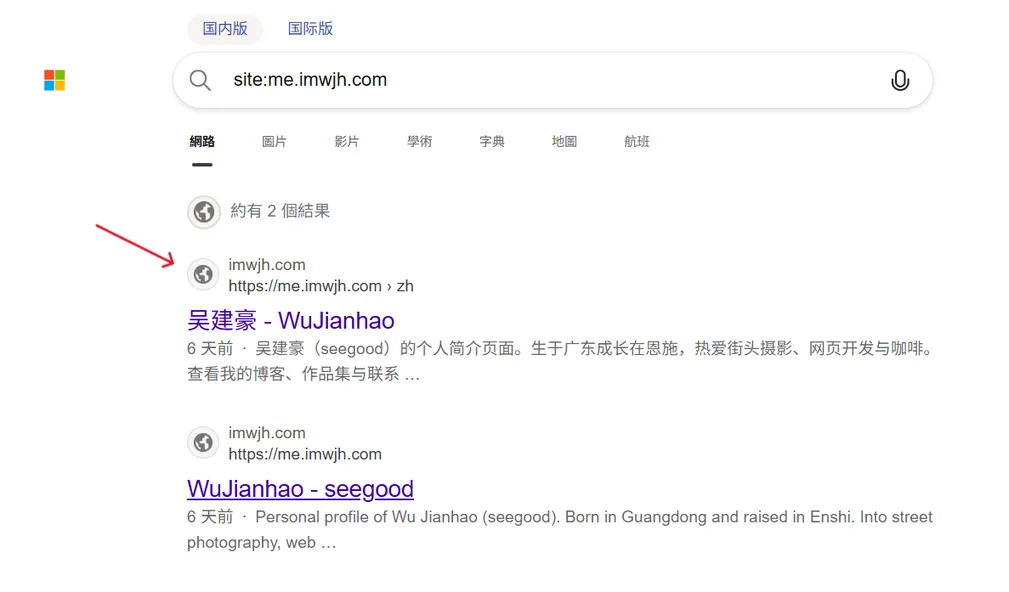
You search for your site on Bing, and there it is — sitting next to the default globe icon instead of your favicon, no matter how long you wait. This post walks through how I went from noticing the problem to filing official feedback and finally getting the icon to show up.
What I Ran Into
My site had been live for a while, and I kept it updated. Then one day I searched for it on Bing and noticed the listing wasn't showing my favicon — just Bing's default gray globe. At first I didn't think much of it. Figured the crawler would pick it up in a few days. I waited a good while. Still the same.
After digging around online, the word is that Bing doesn't crawl favicons for every site — there's supposedly a bar you have to clear first:
| Condition | Rough threshold | Notes |
|---|---|---|
| Domain age | 6+ months | New sites and recently transferred domains mostly get skipped |
| Daily search clicks | Around 50 (30 has worked in practice) | Low-traffic sites aren't seen as worth the crawl resources |
(These thresholds come from unofficial sources around the web — take them with a grain of salt.)
Then again, maybe not. I ran this once myself: a .com domain registered about a week earlier — zero domain age, zero traffic. I filed the feedback in Bing Webmaster Tools, and a few hours later, the icon was already showing up when I searched for the site.
A domain under a week old, no traffic, live in hours — that contradicts every single one of those thresholds. So my takeaway: there's no real pattern to Bing's favicon indexing. When it happens and how fast, you can't predict. Treat that table as a rough reference, but don't let it convince you your site is "too new" or "too small" to bother — just file the request.
First, Make Sure Your Side Is Set Up
Before you start, check one thing: your site's favicon actually works — the file loads fine and your HTML <head> has the declarations:
<link rel="icon" href="/favicon.ico" type="image/x-icon">
<link rel="shortcut icon" href="/favicon.ico" type="image/x-icon">
If that's all in order, the problem is on Bing's end. Keep going.
Filing the Support Request
Bing has an official support channel tucked inside Bing Webmaster Tools.
Prerequisite: you'll need a Bing Webmaster Tools account with your domain verified. If you haven't done that yet, head to bing.com/webmasters first.
Step 1: Find the Support Entry
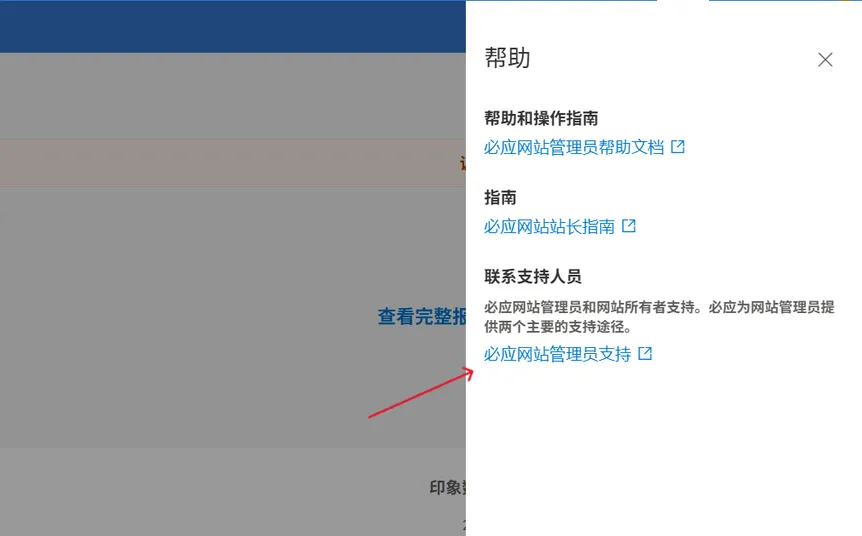
Log in to Bing Webmaster Tools. On the main dashboard, click the question mark icon in the top-right corner, then find "Bing Webmaster Support" in the menu that pops up.
Step 2: Raise a Support Request
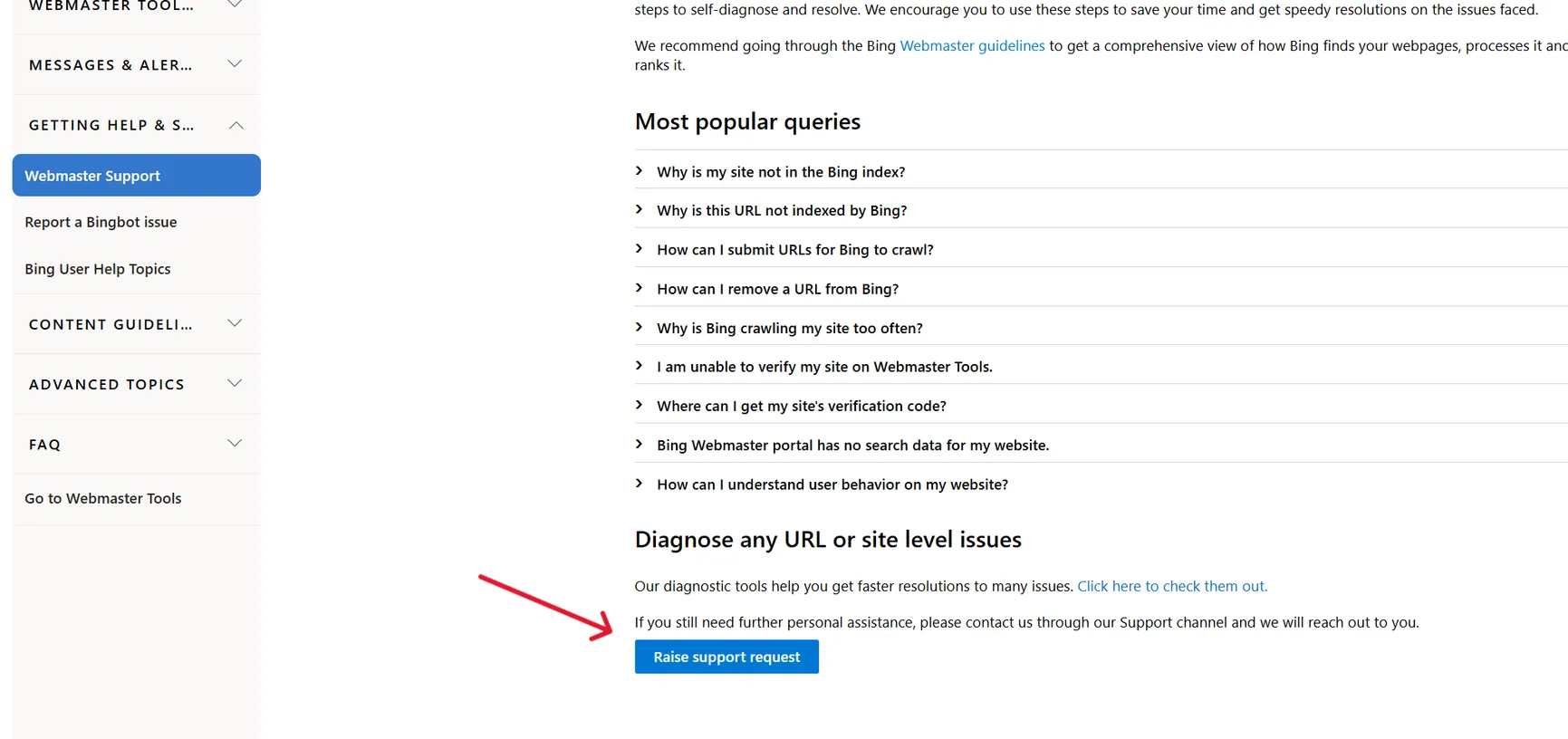
On the help page, find "Webmaster Support" in the left sidebar, scroll to the bottom of the page, and click "Raise support request".
Step 3: Fill Out the Form
The form itself supports other languages, but write the issue description in English. The support team handling these requests is based in India, and English tickets move through faster.
Here's what you'll need to fill in:
- Name and email: your real contact info
- Target site URL: the site you're reporting the favicon for
- Issue type: Wrong search result → Issue with Favicon
- Issue description: use something like this—
Bing didn't crawl my site's icon.
The correct ico address is https://yourdomain.com/favicon.ico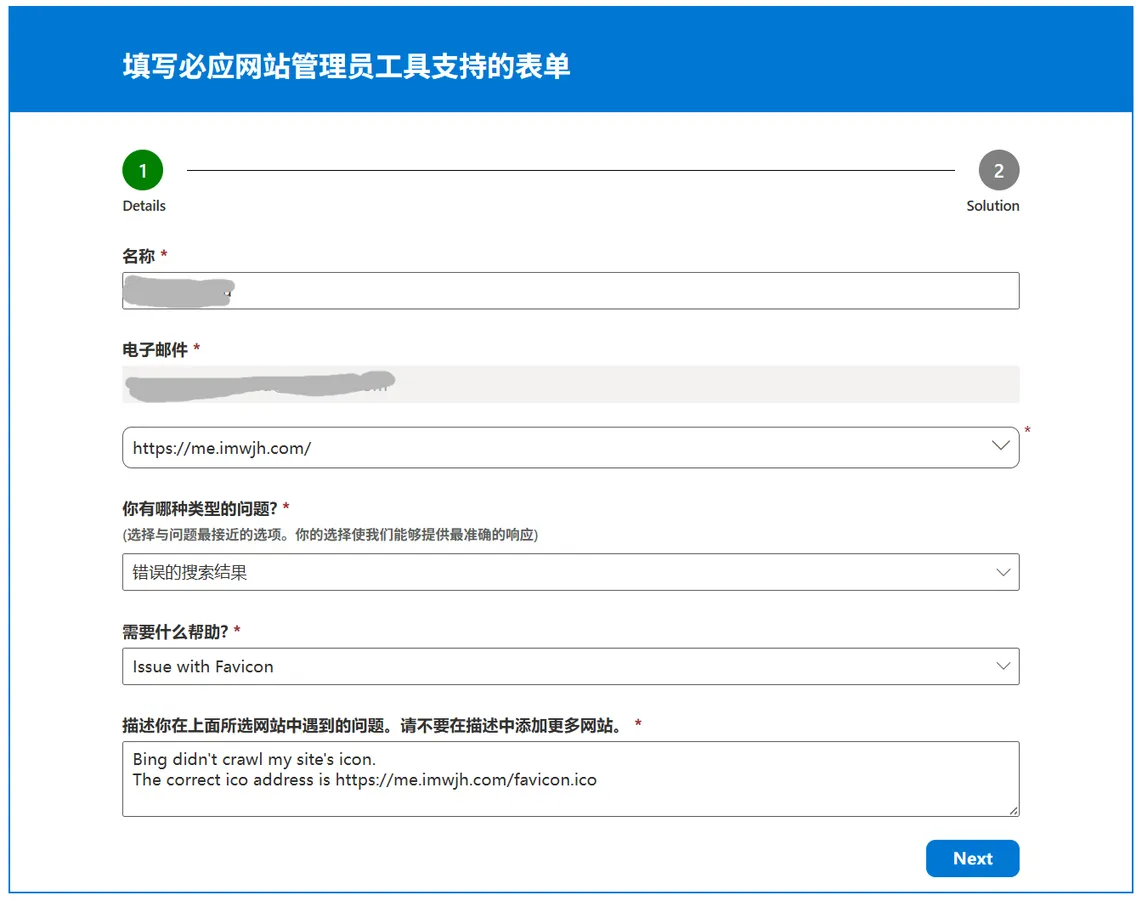
Fill it in and submit.
Step 4: Reply "yes" on the Copilot Chat Page
After you submit the form, the page redirects to a Bing Copilot chat window. It'll read back everything you just entered — site URL, issue type, issue description, the correct .ico address — and then ask whether you want to go ahead and create the support ticket.
You don't need to say anything else. Just type yes in the input box at the bottom and send it.
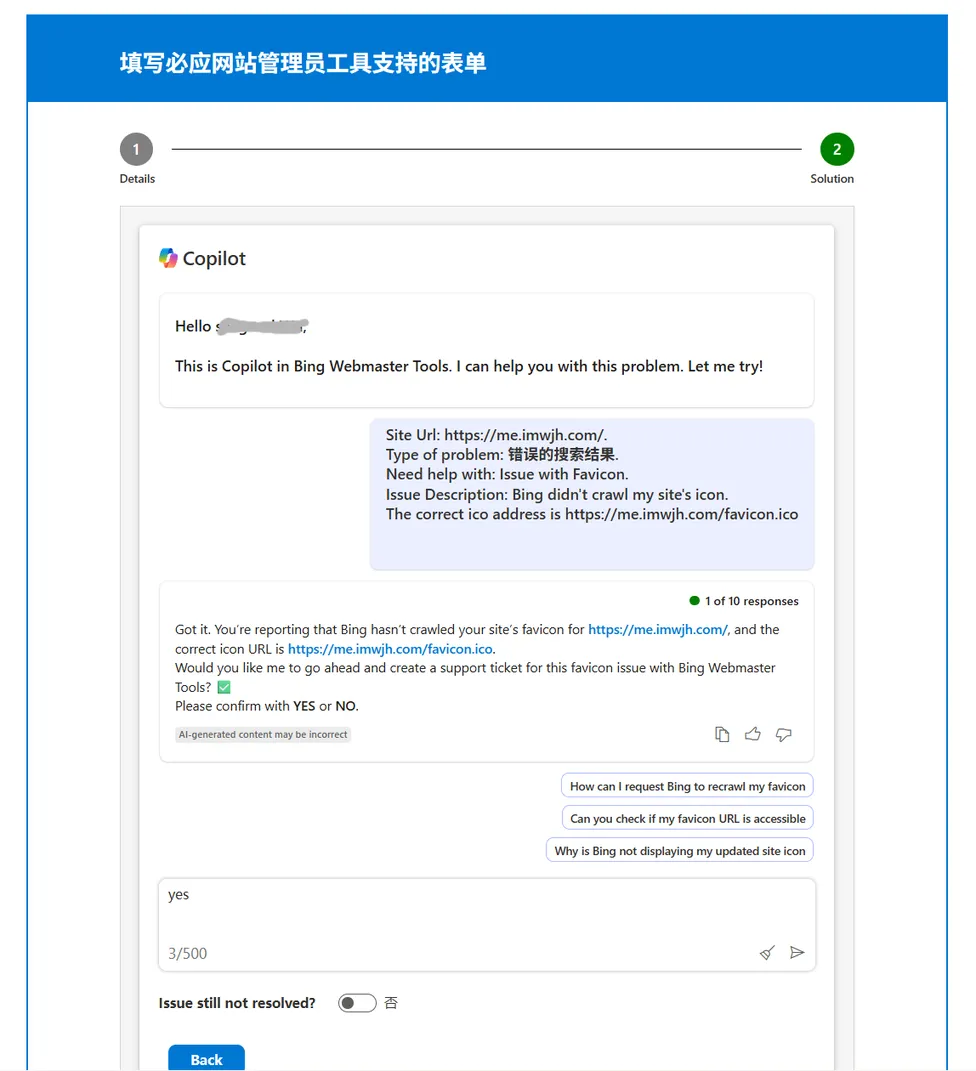
Once you reply yes, the ticket officially enters the human processing queue.
Then You Wait
Right after submitting, you'll get two automated emails: one confirming they received your request, another saying it's being worked on. Flag the one with the Case ID — you'll want it if you need to follow up.
How long does it take? Honestly, it varies. For most cases it goes something like this:
| Stage | Timing | What happens |
|---|---|---|
| Instant | Right after submitting | Two automated emails arrive |
| Processing | A few hours to a week | A human agent picks it up |
| Completion notice | Third email arrives | Confirms the icon has been updated |
| Live in search | ~3–7 days after the notice | The icon shows up in Bing results |
Remember that week-old domain from earlier? Icon live within hours of submitting. Other people waited a week or two for a reply. So don't sit there refreshing your inbox — just search your site's name every few days and check.
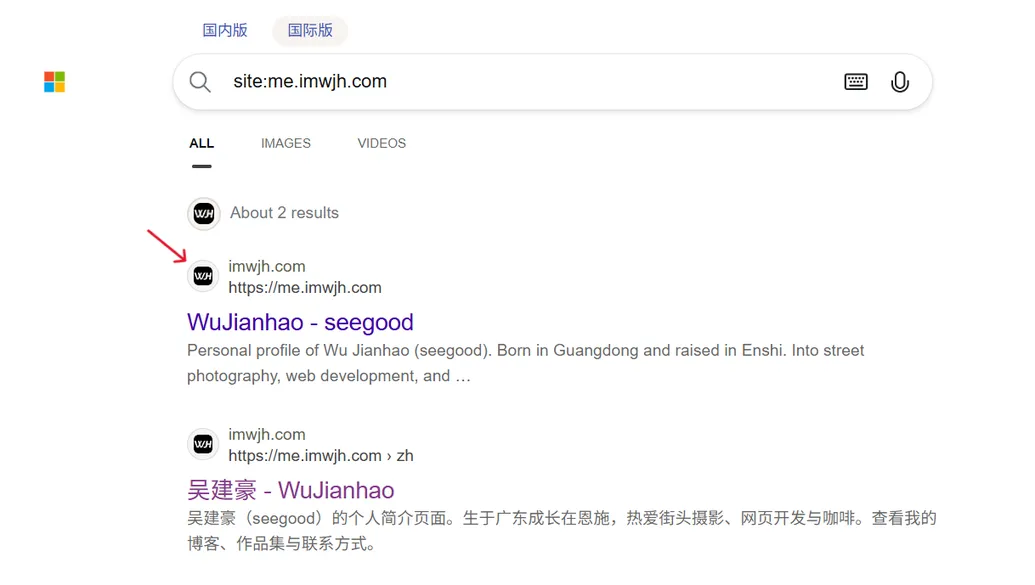
A Few Things Worth Knowing
- Processing speed is all over the place: anywhere from a few hours to a couple of weeks. Just wait it out — no need to keep poking them.
- If at first you don't succeed, file again: some people get it done with one ticket, others needed two. If two weeks pass with no completion email, submit another one.
- Don't bother adding the icon URL to your sitemap: it's the first thing most people try, but it does basically nothing for Bing's favicon indexing. Save yourself the effort.
- Don't sweat the icon size: some sources claim 196×196 is ideal, but 48×48 and 64×64 both worked in practice. No need to redo your asset.
Wrapping Up
There's no rhyme or reason to Bing's favicon indexing. It might drag on forever, or it might happen faster than you'd believe. Instead of waiting around, just file a ticket — if a domain registered a week ago can get it sorted in a few hours, you don't need to worry about whether your site "qualifies".
Your favicon is part of your brand in search results. Being the only listing without an icon does cost you clicks. Fifteen minutes to file one support ticket, and it's done.

Ready to Put Your Website in Your Users' Pockets?
ToApp is a free website to Android app converter. Turn your site into an installable APK with no coding, no ads, and no cloud upload.
Download ToApp Free →